 |
Pixelpart 1.9.3
GameMaker Plugin
|
|
Pixelpart 1.9.3
GameMaker Plugin
|
Before you can play Pixelpart effects in your game, make sure to add the .ppfx effect files as Included Files to your GameMaker project. This way, the effects are included when exporting the game.
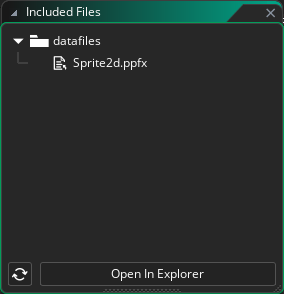
The Pixelpart plugin supports two different workflows for integrating Pixelpart effects into your game, an object-based workflow and a script-based workflow.
The object-based workflow is the preferred approach and makes use of the obj_PixelpartEffect object, which acts as a base object for all Pixelpart effect. Create a custom object, for example obj_MyEffect, and set obj_PixelpartEffect as its parent.
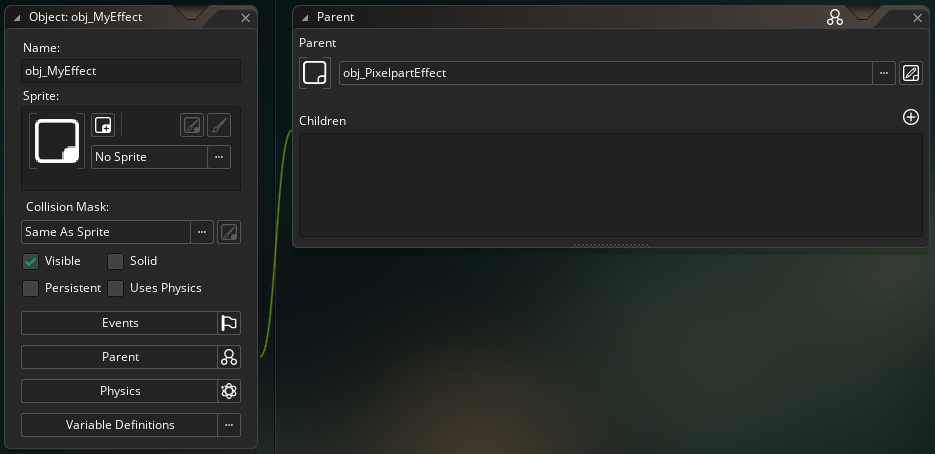
Then, set the effect_resource_path variable of obj_MyEffect to the filename of the .ppfx effect file. The obj_PixelpartEffect object uses this variable to determine which effect to play.
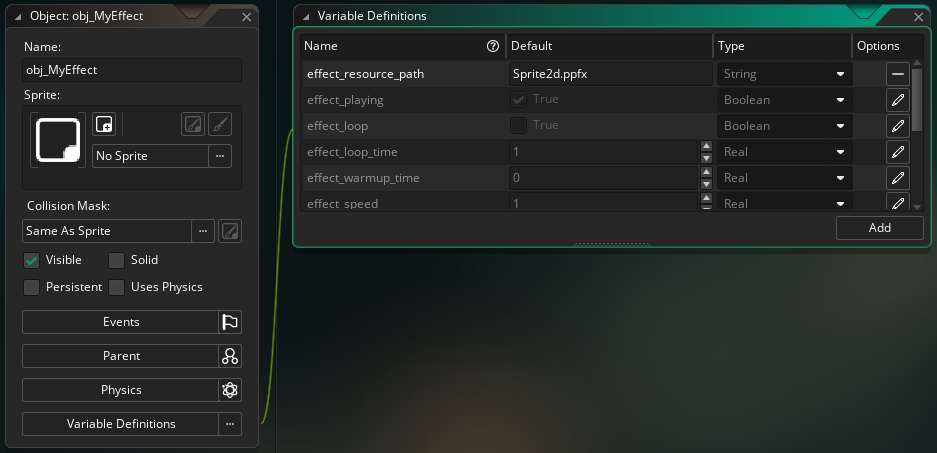
Finally, add an instance of obj_MyEffect to a room to display the effect. You can further customize the effect's behavior by adjusting the following properties:
| Property | Description |
|---|---|
| effect_resource_path | The effect to be played. Cannot be set at runtime. |
| effect_playing | Whether the effect is playing or paused. |
| effect_loop | If enabled, the effect is repeated after the time specified in effect_loop_time. |
| effect_loop_time | Time in seconds after which the effect is repeated. Only has an effect if effect_loop is enabled. |
| effect_warmup_time | Time in seconds the effect is pre-simulated before being rendered. This value impacts performance and should be kept as low as possible. |
| effect_speed | Multiplier for the playback speed of the effect. For example, setting effect_speed to 0.5 shows the effect in slow motion. |
| effect_frame_rate | How many iterations are simulated per second. Can be used to improve performance for complex effects. |
| effect_seed | Seed used to initialize the effect simulation. This seed is used if effect_random_seed is not enabled. |
| effect_random_seed | Whether to use a random seed to initialize the effect simulation. |
| effect_scale | Multiplier for the size of the effect. Adjust this value if the effect appears too small or too large in the scene. |
| effect_flip_h | Whether the effect is flipped horizontally. |
| effect_flip_v | Whether the effect is flipped vertically. |
The script-based workflow offers more control and does not require you to create any new objects, but it is more complicated as the effect is loaded and played entirely with GML scripts.
First, initialize a PixelpartEffectResource, which is a struct that represents a loaded .ppfx file and call its load method to load a Pixelpart effect into memory. Then, create a PixelpartEffect passing in the effect resource as a constructor argument. This struct is responsible for simulating and drawing the effect. You can reuse the same PixelpartEffectResource for other PixelpartEffects if you want to play the same effect using different parameters. The code for that could be put into a Create script of some other object, for example.
To step the effect simulation, use the advance method of the PixelpartEffect struct. The first argument represents the time in seconds to advance the effect simulation. In most cases you should use the time passed since the last frame, i.e. delta_time and convert it to seconds. You also need to provide the x and y position of the effect as the second and third argument. This code could be put into a Step script, for example.
To actually draw the effect, call the draw method. This should be done inside a Draw event.
Do not forget to cleanup the effect and effect resource when you no longer need them.
 1.13.2