Scene
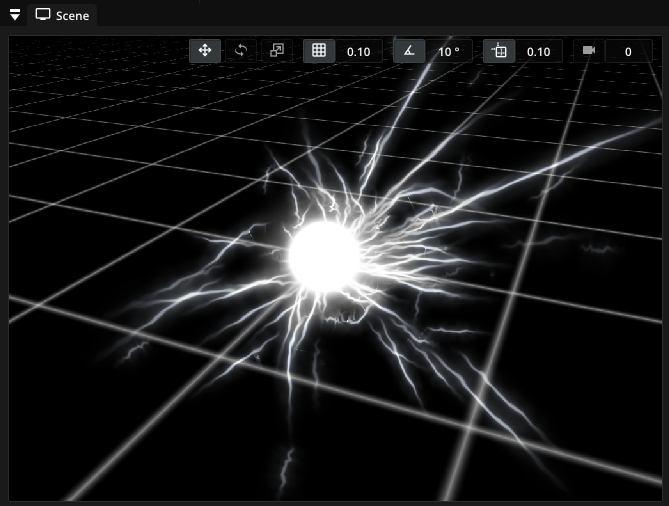
The Scene window is the central place for designing effects. It shows the effect playing in real-time. You can navigate around the scene and manipulate objects such as particle emitters and force fields. The View menu in the top menu bar offers additional settings for the scene view.
Simulation timeline
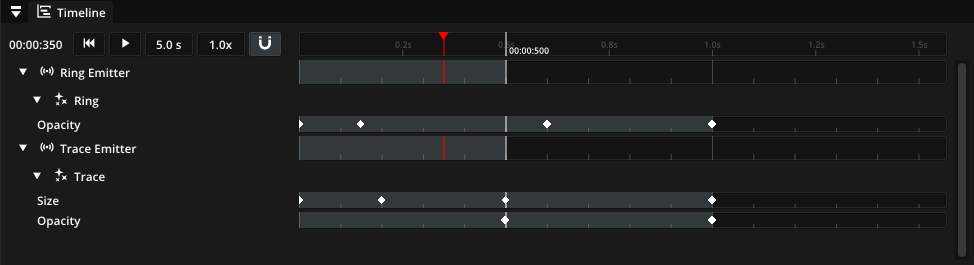
The Timeline window, located below the Scene window, shows a global timeline of your effect as well as timelines of objects in your scene. You can pause/resume and restart the active effect with the / and buttons. Or simply jump to any point in time by clicking on the global timeline. If you want to get a closer look at the timing of the effect, you can zoom in by hovering over the global timeline and turning your mouse wheel. Then you can shift the timeline back and forth by grabbing it with the middle mouse button.
Note
Shortcut: Pause/resume the effect with Space and restart with Shift+Space.
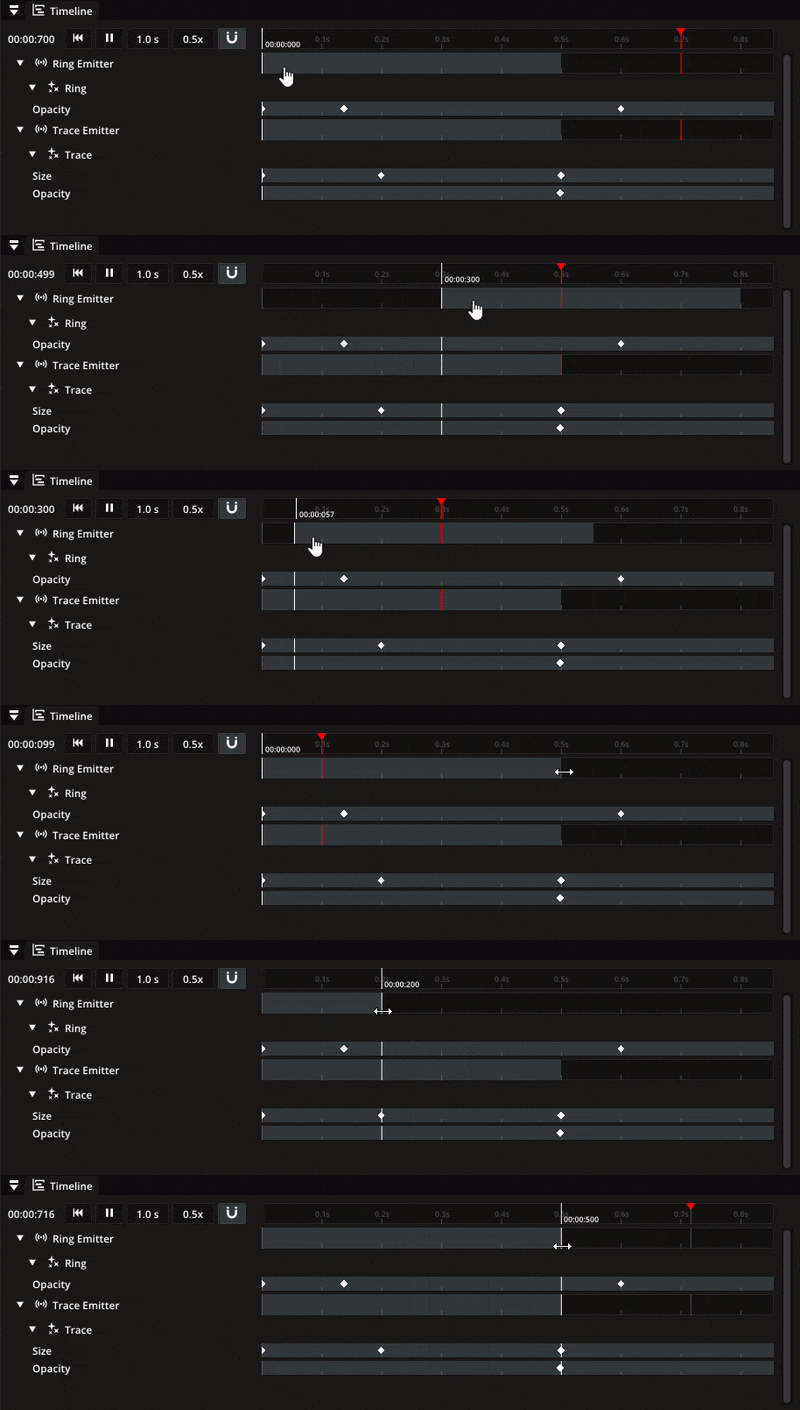
To adjust when objects like particle emitters become active, you can drag their timeline to the desired point in time. When grabbing the start point of an object timeline, you adjust the starting time of the object. Dragging the end point of an object timeline adjusts the object duration instead.
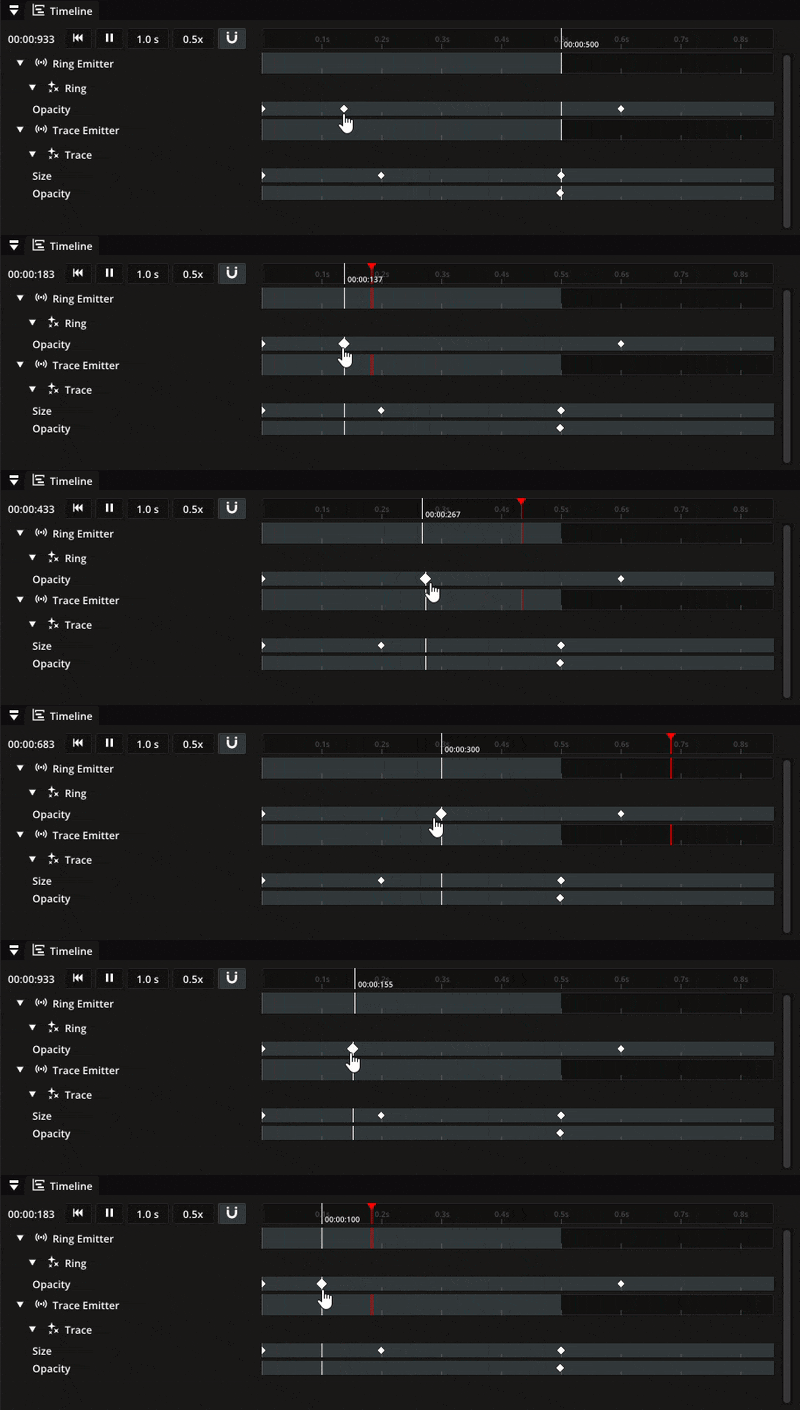
If an object in your scene has an animated property (see keyframe animation for details), you can expand the object with the small arrow next to it showing any animated property with its keyframes. This is useful for synchronizing keyframes between different properties and objects.
Manipulating scene objects
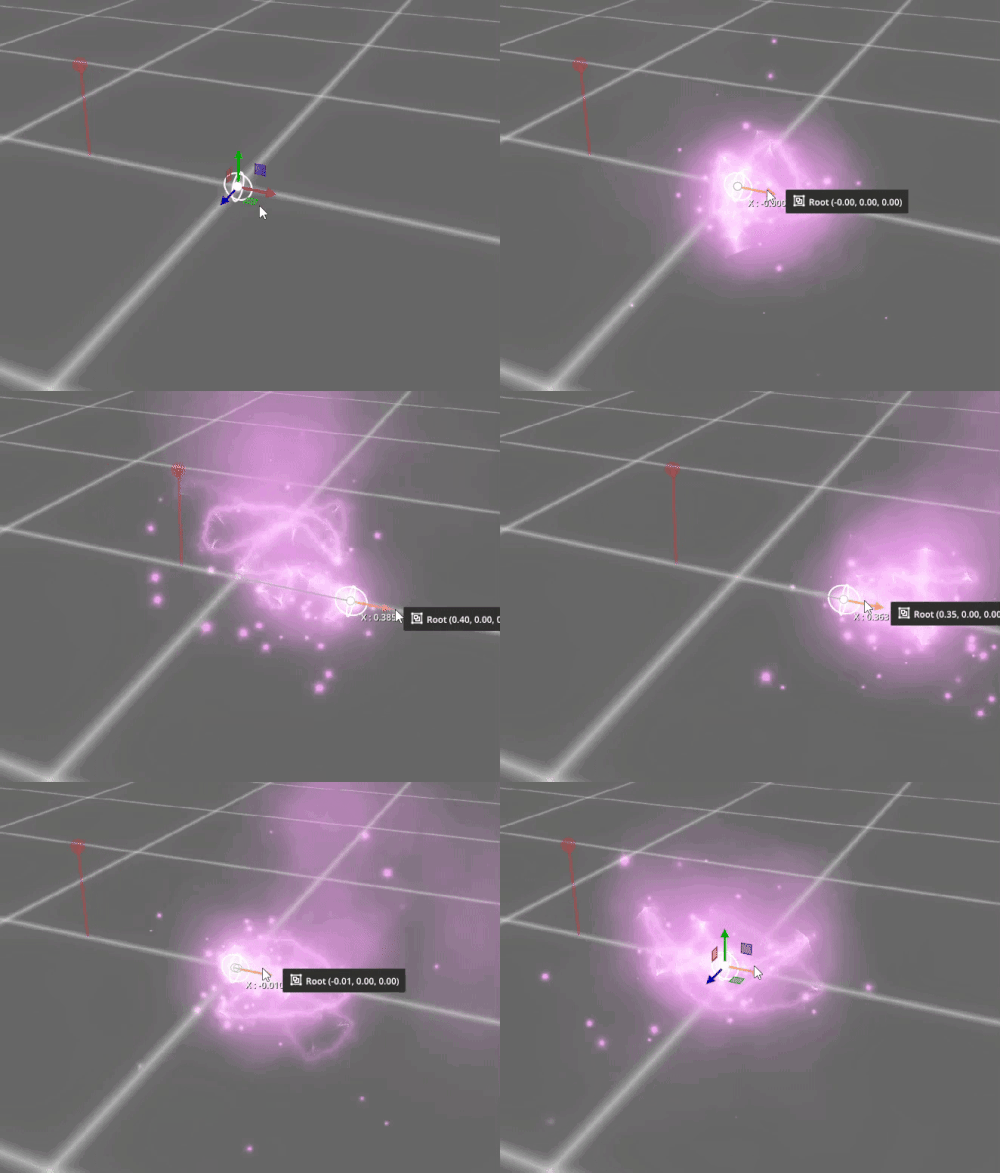
You can manipulate objects in both 2D and 3D scenes using the translation, rotation and scaling gizmos. As nodes are organized in a scene hierarchy, transformation of upper nodes in the hierarchy also apply to child nodes.
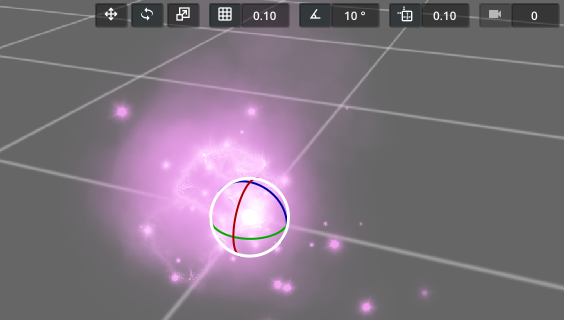
You can select which gizmo is active in the top right corner of the scene view.
Note
Shortcut: The translation, rotation and scaling gizmos can be activated with W, E and R, respectively.