Effect Events
Custom events are useful if you’re working with engine plugins and want to make your game react to something happening in the effect. For example, you may want to play an audio effect when a specific emitter starts producing particles. To do this, you can create an event in Pixelpart, attach it to the emitter and subscribe to the event with a script in the game engine.
You can also think of events as the opposite of triggers: Instead of letting the effect react to something in the game, events are used to dynamically change the game based on things happening with the effect.
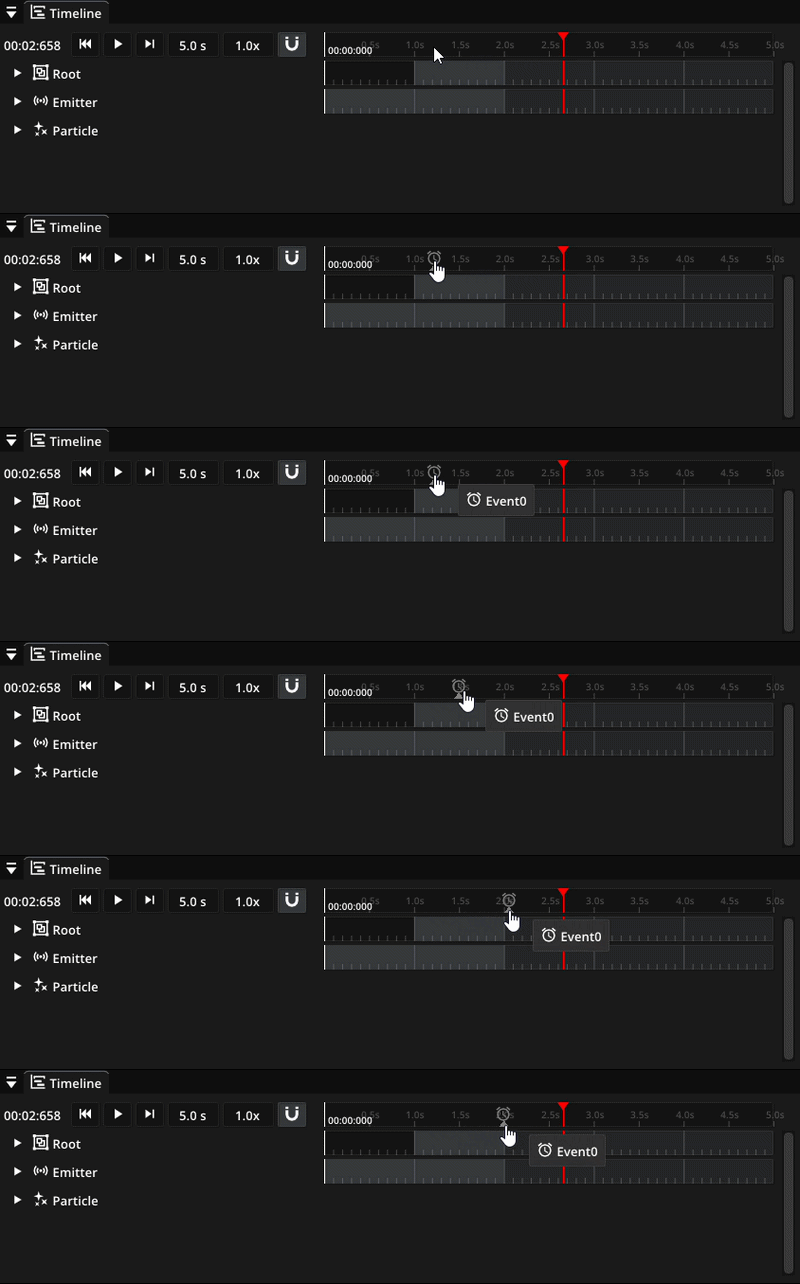
To create a new effect event, right-click on the global timeline. This will create an event that is invoked after the specific amount of time has passed since the event has started playing. Simply drag it along the timeline while holding the left mouse button to change the timing of the event.
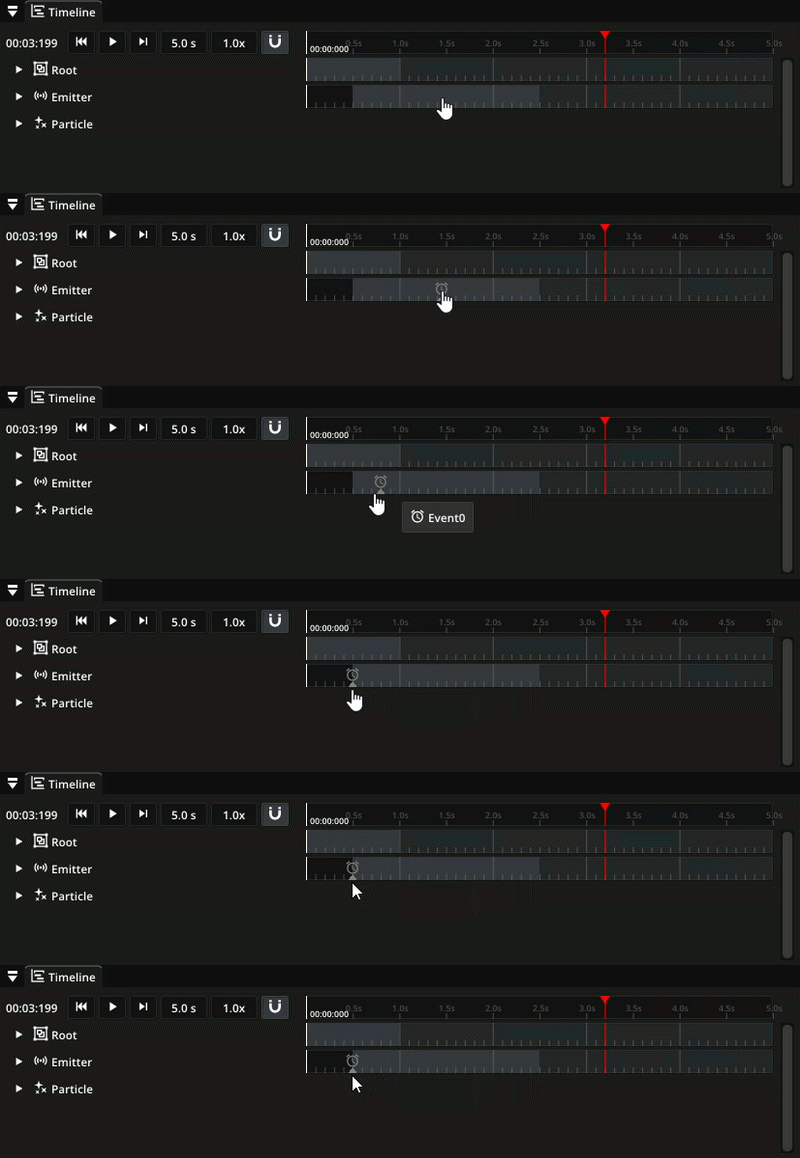
You can also attach an event to a node like a particle emitter by right-clicking on the node timeline instead. These events are invoked when the node becomes active.
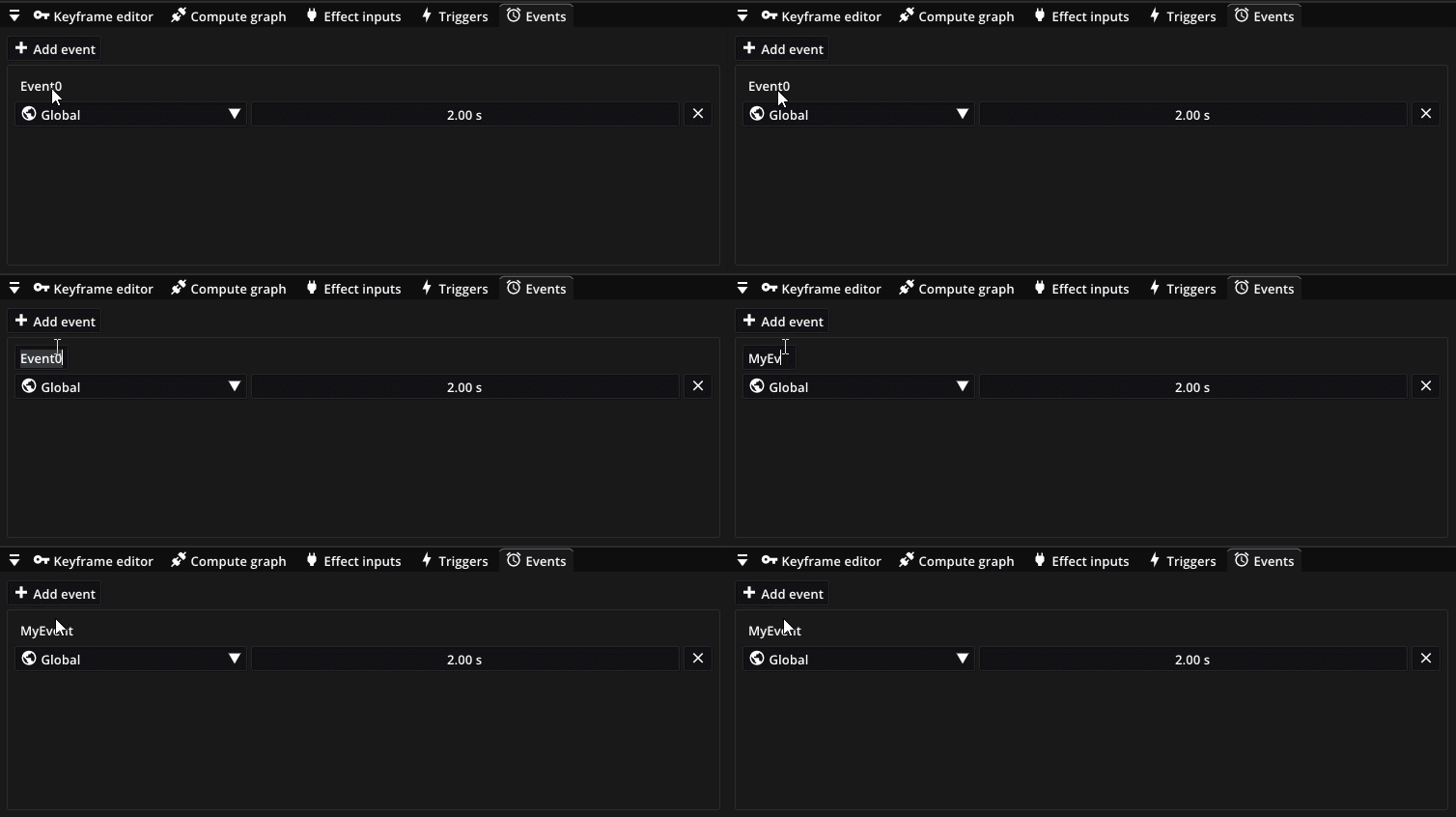
To change the event’s name go to the Events window.
In order to actually make the game react to the event, subscribe to the effect event with a script. The exact process of how to do this varies from engine to engine. In Godot, you can connect to the effect_event signal:
func _ready():
   $Effect.effect_event.connect(_on_effect_event)

func _on_effect_event(event_id, event_name):
   if event_name == "MyEvent":
      # Do something, e.g. play audio effect
In Unity, you can subscribe to EffectEvent:
public void Awake()
{
   var effect = GetComponent<PixelpartEffect>();
   effect.EffectEvent += OnEffectEvent;
}

private void OnEffectEvent(object sender, EffectEventArgs e)
{
   if (e.EventName == "MyEvent")
   {
      // Do something, e.g. play audio effect
   }
}